Color Compensation helps ShoMetrics widgets on your physical Stream Deck keys look closer to the colors on your monitor.
Important limits:
- It only affects ShoMetrics widget images and its physical Stream Deck key output.
- It does not change your monitor.
- It does not change Stream Deck’s global brightness setting.
- It does not affect other plugins.
- It does not affect the preview inside Stream Deck software.
- It is a practical visual adjustment, not professional color calibration.
Run setup again if you change Stream Deck brightness, switch monitors, change monitor color mode, or enable HDR.
How Setup Works
During setup, ShoMetrics shows a reference sample in the configuration UI (Property Inspector) and the same sample on one physical Stream Deck key.
Your job is to compare the monitor sample with the Stream Deck key, then move the slider until the key looks as similar as possible. The monitor sample stays unchanged. Only the physical Stream Deck key changes.
Move your eyes back and forth between the monitor and the key while adjusting. Do not try to make a “perfect” match. The goal is a close visual match for your current monitor, Stream Deck brightness, and room lighting.
Check Your Key
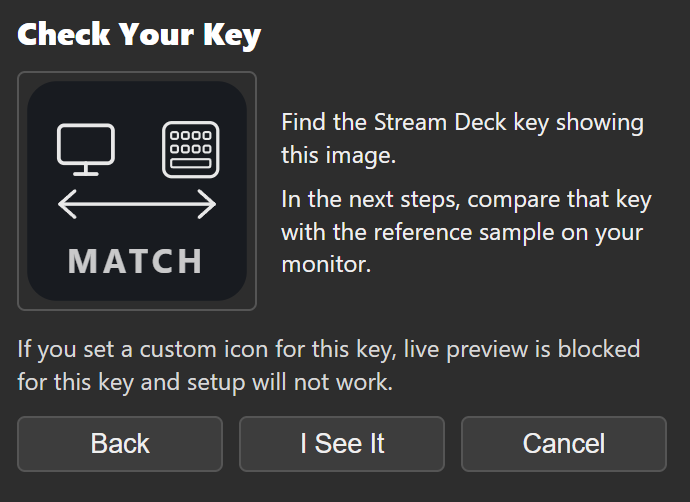
First, find the Stream Deck key that shows the setup image. This key is the hardware preview target for the rest of setup.
If this key has a custom icon set in Stream Deck software, live preview may be blocked for that key and setup will not work correctly.
Step 1: Color Strength (Saturation)
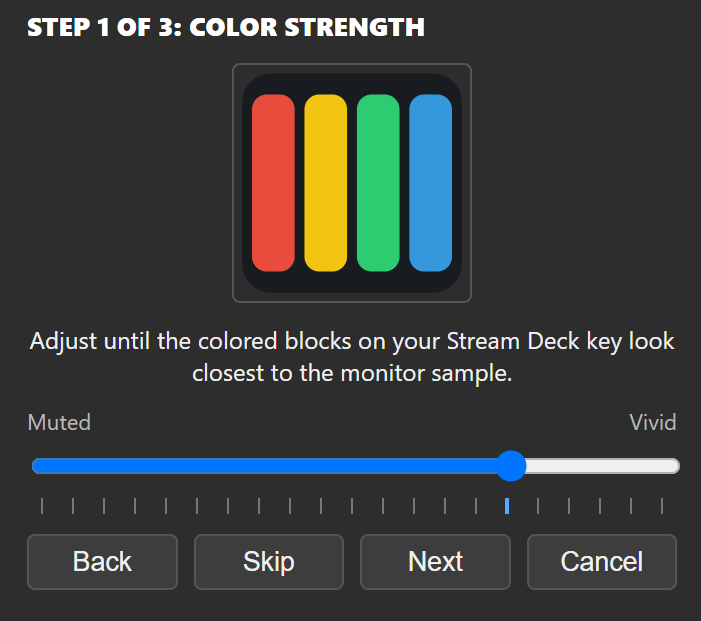
Look at the colored blocks on your monitor, then look at the colored blocks on the Stream Deck key. Move the slider until the key looks about as colorful as the monitor sample.
Use this step to avoid colors that look too gray or too intense on the key.
If the slider is near the far left or far right and the key stops changing, that usually means the Stream Deck display has reached what it can show for those colors. Move the slider back to the closest-looking position; more slider range cannot create colors the key hardware cannot display.
Step 2: Midtones (Gamma)

Look at the gray gradient on your monitor, then compare it with the gray gradient on the Stream Deck key. Move the slider until the middle gray levels on the key look close to the monitor sample.
Use this step for the main “washed out” or “too heavy” feeling in normal widget colors.
Step 3: Dark Detail (Shadows)
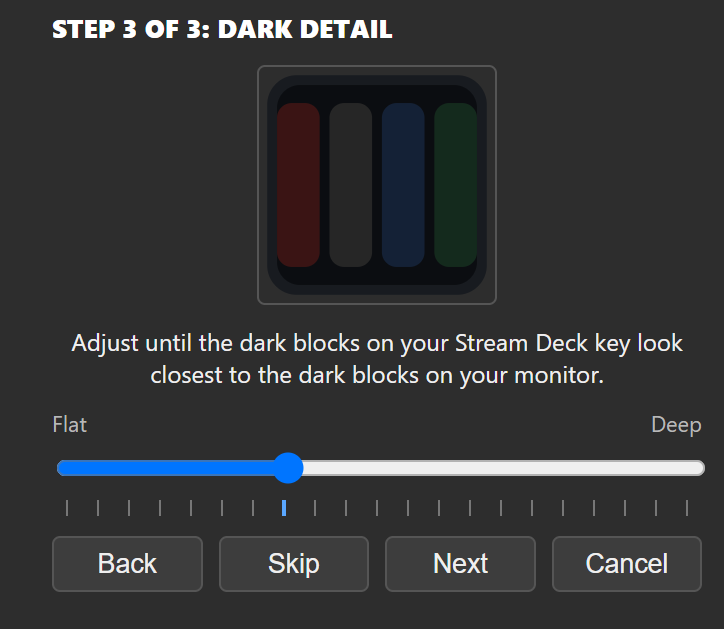
Look at the dark blocks on your monitor, then compare them with the dark blocks on the Stream Deck key. Move the slider until the dark blocks are still visible and look close to the monitor sample.
Use this step to keep dark widget colors from becoming either flat gray or crushed black.
Review And Fine-Tune
After the guided steps, review the result on the physical key. Use the hold-to-preview button to compare the compensated result with the original uncompensated output.
If the result is close but not quite right, open fine-tune manually.
Overall Brightness
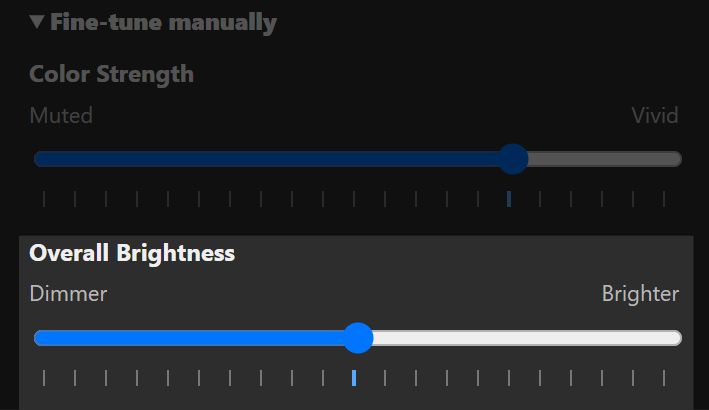
Overall Brightness is available in manual fine-tuning, not in the guided setup steps.
Brightness is different from the other controls. Do not treat Overall Brightness as a “match it exactly” or “set it to 100%” control. If the whole widget feels too dim after setup, make a small brighter adjustment. If two positions look almost the same, the slightly brighter one is usually the safer choice.
If the whole key is much too dark or bright before you start, set Stream Deck’s global brightness to your normal daily level first, then run setup.
When To Run It Again
Run setup again when the thing you are matching against changes:
- You changed Stream Deck global brightness.
- You switched to another monitor.
- You changed monitor brightness or color mode.
- You enabled or disabled HDR.
- Your room lighting changed enough that the key or monitor looks different.
Before And After
After setup, use the hold-to-preview button to temporarily show the original uncompensated Stream Deck output. This lets you compare before and after on the actual key without relying on memory.
If the result looks worse, reset Color Compensation and run setup again.
Technical Details
The rest of this page explains what the feature is doing and where its limits are.
Why This Is Needed
ShoMetrics lets you choose widget colors while looking at your monitor, but the final widget is displayed by a separate LCD key on the Stream Deck. Those are two different displays. They can differ in brightness, contrast, viewing angle, color handling, and how they react to room lighting.
That difference is normal display behavior. It does not mean ShoMetrics rendered the wrong RGB values. It means the same image can look different after different hardware displays it.
Elgato documents Stream Deck devices as having customizable LCD keys and exposes SDK APIs for plugins to set key images. Elgato’s public technical specs do not publish a full color calibration target for those keys, so ShoMetrics does not claim a specific Stream Deck color gamut, sRGB coverage, or measured color accuracy.
What It Does
ShoMetrics stores a small compensation profile made from the setup sliders. When ShoMetrics renders a widget for physical Stream Deck keys, it applies that profile to the hardware image.
The monitor reference and software preview remain unmodified. That split is intentional: the monitor shows the color you picked, and the physical key gets the adjusted image.
Currently the saved profile is global for ShoMetrics. It is not per widget.
What It Does Not Do
Color Compensation is not an ICC profile, colorimeter workflow, or operating system display calibration. ICC profiles are part of formal color management systems; this feature is a simpler ShoMetrics-only adjustment.
It does not:
- measure your monitor
- measure your Stream Deck
- make the Stream Deck physically capable of colors or brightness it cannot display
- change your monitor settings
- change Stream Deck’s global brightness setting
- affect non-ShoMetrics images or other Stream Deck plugins
- guarantee exact color matching
It tries to make ShoMetrics widgets look closer to your current monitor under your current setup.
Sources
- Elgato Stream Deck technical specifications: customizable LCD keys
https://help.elgato.com/hc/en-us/articles/360027959372-Elgato-Stream-Deck-Technical-Specifications - Stream Deck SDK keys guide: plugins can update key images with
setImage
https://docs.elgato.com/streamdeck/sdk/guides/keys/ - Stream Deck SDK websocket reference:
setImagecan target hardware, software, or both
https://docs.elgato.com/streamdeck/sdk/references/websocket/plugin/ - International Color Consortium: ICC promotes open color management systems and
ICC profile workflows
https://www.color.org/ - Microsoft Windows HDR settings: HDR/SDR settings can affect brightness and
saturation in apps
https://support.microsoft.com/en-us/windows/hdr-settings-in-windows-2d767185-38ec-7fdc-6f97-bbc6c5ef24e6